
Automation in Jira: Reduce Low-Value Work
Automation in Jira isn’t new, but knowing which option to use is the difference between smooth delivery and added complexity.

Automation in Jira isn’t new, but confusion often arises around when to use Automation rules versus Perform Action rules (or Post-functions in the old editor).
Both reduce manual effort, but they operate differently. Knowing which to apply where is the difference between smooth delivery and added complexity.
1. The Problem: Repetition and Friction
Teams spend a significant amount of time performing manual, repetitive tasks: assigning work, updating fields, closing work items.
Left manual, repetitive tasks divert attention from higher-value work. Implemented without coordination, automation can increase notifications without improving workflow.
The solution is to reduce low-value work using Jira’s automation and workflow rules, without cross-project conflicts or creating rules that are not actively maintained.
2. Automation Rules (Cross-Project)
Automation rules are flexible and designed for cross-project efficiency. They are made up of three parts: Triggers → Conditions → Actions.
Triggers
Triggers start the execution of rules and listen for events in Jira. Available triggers include:
Work item triggers – Field value changed, Incoming webhook, Work items updated, Sprint created, started or completed
DevOps triggers – Branch created, Build failed, Build status changed
Security triggers – when connected to a security tool
Design triggers – when a new Figma design is linked to a work item.
Available Work item and DevOps triggers
Conditions
Conditions are criteria that must be met for the rule to continue running and include the following.
Work item fields condition – checks whether a work item field meets specified criteria
Alert fields condition – checks whether an alert’s field meets a certain criteria
Smart values condition – compares two values
If/else block – performs alternate actions based on whether certain conditions are met or not met
Work item attachments – checks if the comment or description fields of a work item contains attachments.
JQL – checks to see if a work item matches a specified JQL query.
Related work items – checks if related work items exist on the trigger work item (e.g. parent, sub-tasks, epics, stories, etc.) or matches a specified JQL query.
User – checks whether a user exists or is in a specified group.
Available Conditions in Jira Cloud
Actions
Actions perform the tasks, including but not limited to the following.
Create, Assign, Clone, Edit, Close or Comment on a work item
Attach forms
Create branch in (Bitbucket / GitHub / GitLab)
Create Confluence page
Create sprint
Send email
Send Microsoft Teams or Send Slack message
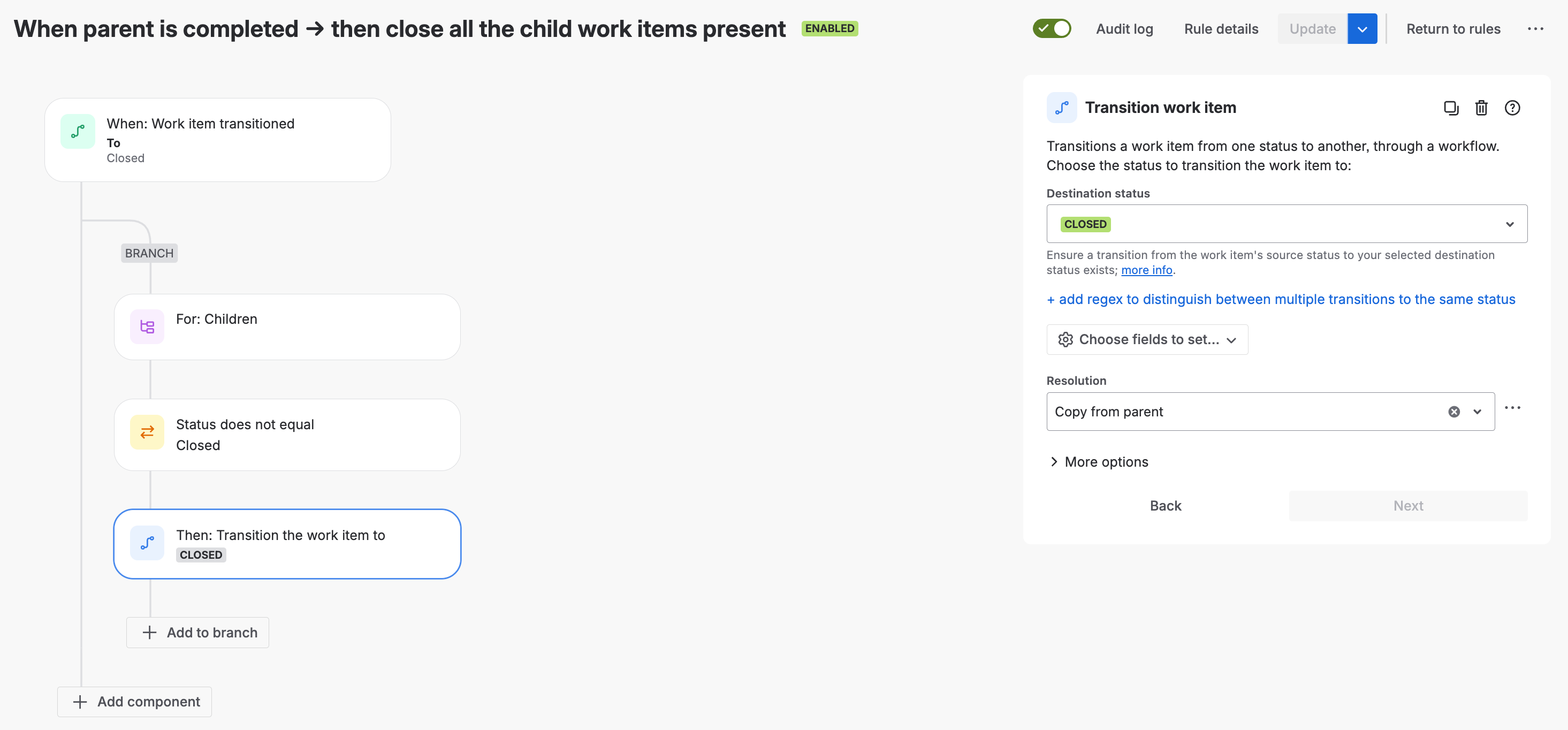
Action example: Transition work item
Branching
A Branch rule applies actions to related work items. When a rule is branched on a work item or list of work items, the sub-branch of the rule is executed against each work item.
Available branch rules in Jira Cloud instance
Smart values
Smart values are dynamic placeholders that allow data to be accessed and manipulated. They can add significant power and complexity to rules.
For example, {{numberOfDaysBeforeDueInclusion}} in the screenshot below and the value 3 finds work items due within 3 days.
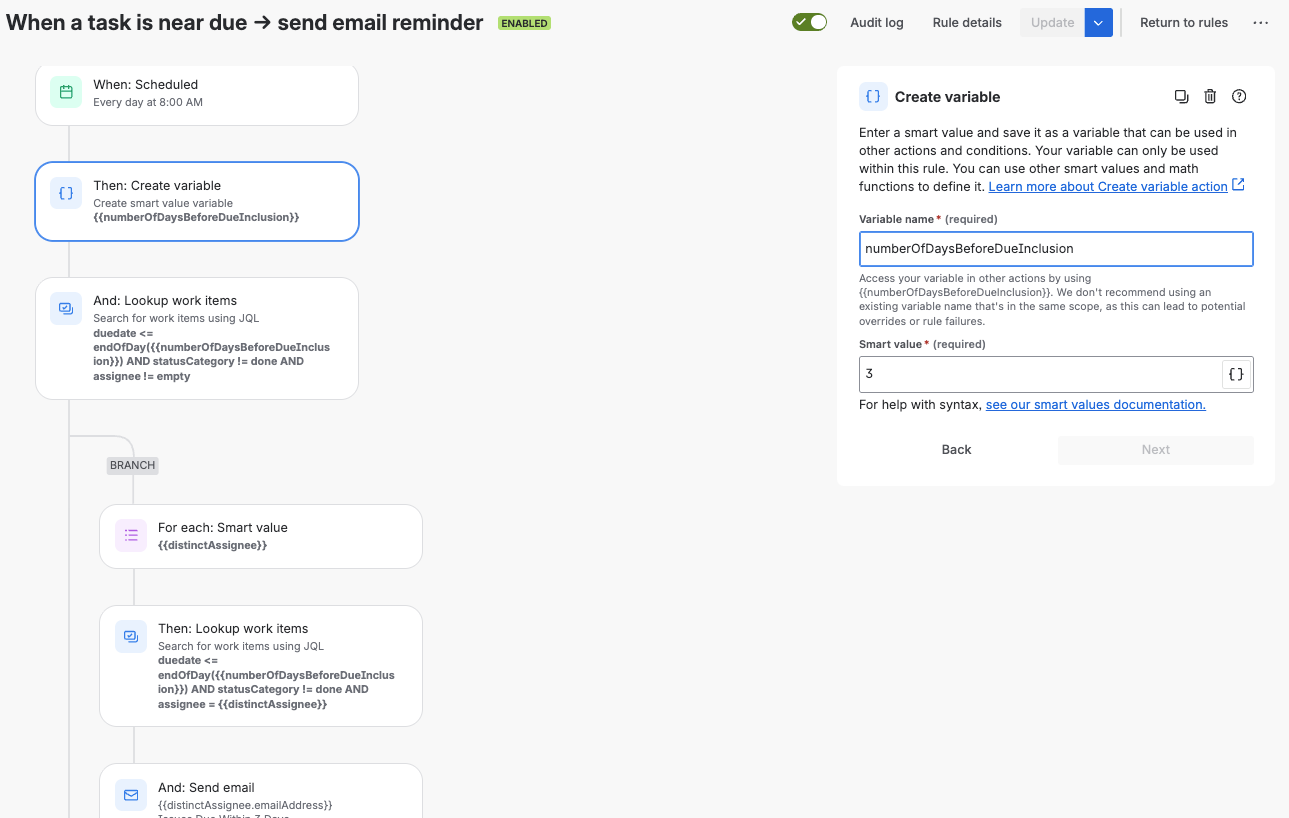
Example variable and smart value to enable email reminder
Rule actor
The rule actor is the user who executes a rule. This user must have the relevant permissions to trigger the rule, and complete any actions, otherwise the rule errors.
Project admins and site admins can choose to change the rule actor, so automation rules can be seen as being run by a team member.
Audit log
An Audit log shows when the rule was triggered, the final result of the execution and any actions that may have been performed. Reviewing audit logs is an effective way of debugging rules.
Where Automation rules fit:
Complex, multi-step processes across projects
Automating repetitive service tasks (e.g. routing requests)
Coordinating DevOps workflows with Bitbucket/GitHub triggers
Automation rules are available in both company-managed and team-managed projects. Project-level rules appear in Project Settings and global rules are managed at site level.
Jira provides Automation templates to Jira Cloud users in Projects > [Your Project Name] > Project Settings > Automation > Templates
Video of Automation Templates in Jira Cloud instance
3. Workflow Perform Actions (Per Transition)
Transition actions or Perform action rules (formerly Post-functions) sit inside Jira workflows and automate tasks when a work item changes status.
These actions run automatically as soon as the transition is completed and are best for backend actions tied directly to that workflow. Actions include the following.
Assign a work item to a user or role
Copy the value of one field to another
Set work item security level based on user’s project role
Trigger a webhook
Update a work item field
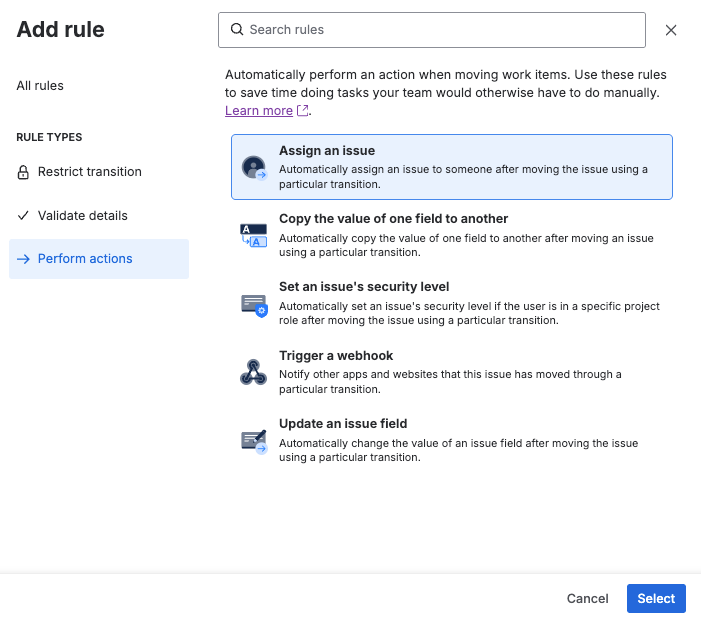
Available Perform actions in company-managed project
Where Perform actions (post-functions) fit:
Core workflow enforcement that must always happen
Notifications tied directly to a transition
Backend updates that don’t require user review
Perform actions are only available in company-managed projects, and changes affect every project using that workflow. Team-managed projects handle everything via automation rules.
4. How It Works in Practice
In a company-managed project, a transition from In Progress → Done might:
Run a Perform actionto set the Resolution and trigger a notification.
Run an automation rule to check for unresolved subtasks and comment if needed.
In a team-managed project, only automation rules are available. Perform actions don’t apply.
The distinction matters. Perform actions are reliable for core transitions. Automation rules are better for orchestrating wider actions, especially where branching or external triggers are needed.
5. Risks and Controls
Governance: In company-managed projects, workflow changes (including Perform actions / post-functions) affect every project sharing that workflow. Test before rollout.
Maintenance: Automation rules can proliferate without oversight. Use naming conventions, audit logs and ownership to improve manageability.
Permissions: The rule actor needs the right access, otherwise rules will silently fail.
Overlap: Avoid duplication. If notifications trigger from both an automation rule and a Perform action, teams may receive excessive notifications.
6. Where to start
Jira provides two powerful options to remove low-value manual effort: automation rules and workflow Perform actions. Each serves a purpose.
Use Perform actions for workflow-bound, backend actions that must always run.
Use automation rules for more complex, cross-project or multi-step processes.
The value is in selective automation: target friction points where repetition slows delivery, and apply the option that aligns with your process.
Start small. Automate one repetitive task and measure the time and focus gained.
Unsure where to begin or need support? Let’s talk.
Tools, teams, strategy — working together, not against each other.
👇 Subscribe for practical ways to make it happen.